Fix RDP Account Lockout
& Auto-Lock Forever
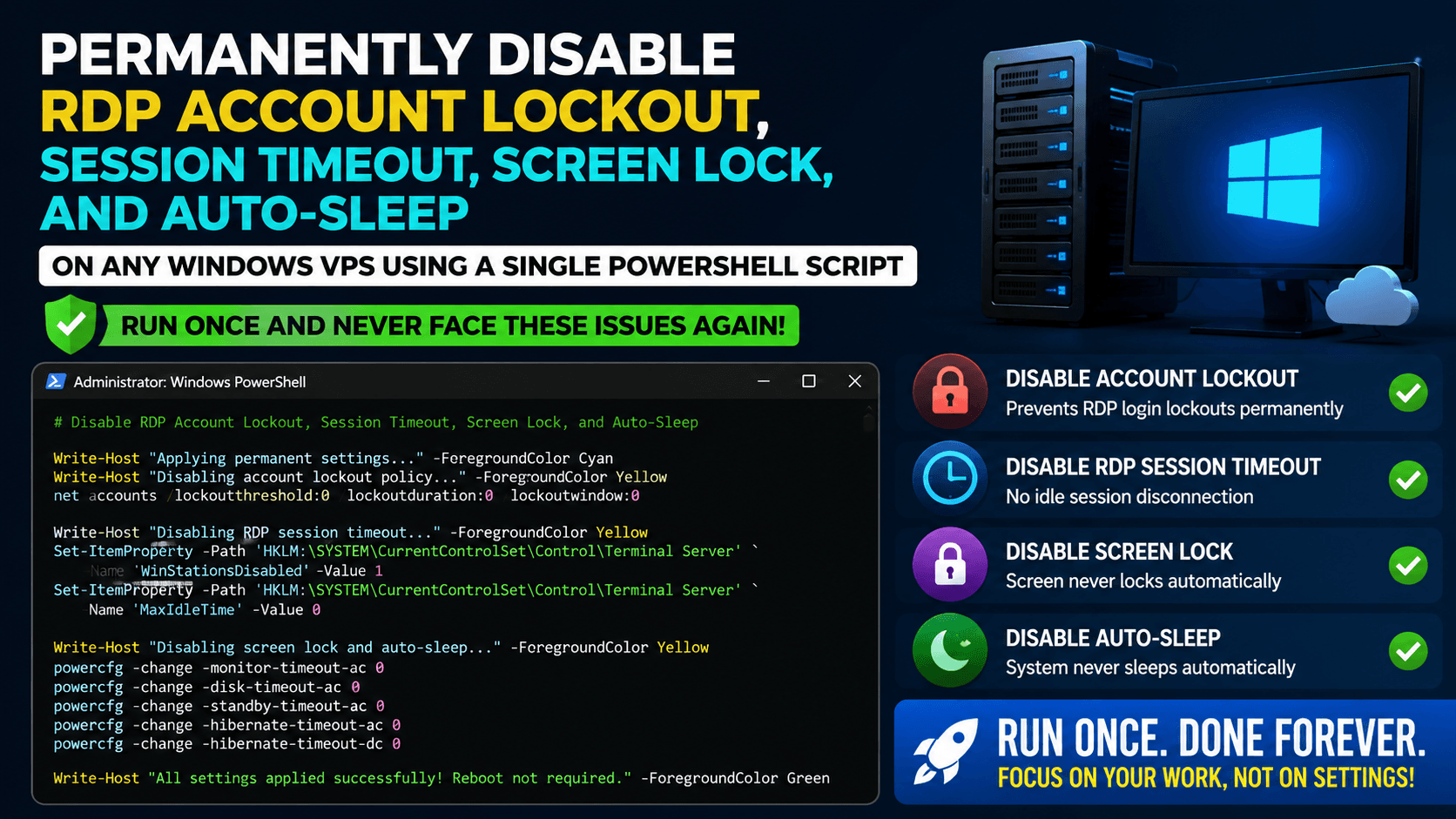
Every time you spin up a new RDP or VPS, the same problems appear — account locks after a few wrong passwords, session disconnects on idle, screen locks itself. This guide permanently fixes all of it with a single PowerShell script you run once.
What Goes Wrong on a Fresh RDP
When you connect to a new Windows VPS via Remote Desktop, three things will eventually frustrate you — sometimes within the first hour.
One Script. Run Once. Fixed Forever.
Instead of navigating Group Policy, Registry Editor, and Power Settings separately — paste this single PowerShell script and you are done. Everything is handled in one execution.
Complete PowerShell Script
# Run as Administrator
Write-Host "Setting up RDP — No Lockout, No Timeout..." -ForegroundColor Green

# ===== ACCOUNT LOCKOUT DISABLE =====
net accounts /lockoutthreshold:0

# Disable machine inactivity auto lock
reg add "HKLM\SOFTWARE\Microsoft\Windows\CurrentVersion\Policies\System" `
  /v InactivityTimeoutSecs /t REG_DWORD /d 0 /f

# Disable RDP idle session timeout
reg add "HKLM\SOFTWARE\Policies\Microsoft\Windows NT\Terminal Services" `
  /v MaxIdleTime /t REG_DWORD /d 0 /f

# Disable disconnected session timeout
reg add "HKLM\SOFTWARE\Policies\Microsoft\Windows NT\Terminal Services" `
  /v MaxDisconnectionTime /t REG_DWORD /d 0 /f

# Disable active session limit
reg add "HKLM\SOFTWARE\Policies\Microsoft\Windows NT\Terminal Services" `
  /v MaxConnectionTime /t REG_DWORD /d 0 /f

# Prevent session ending on timeout
reg add "HKLM\SOFTWARE\Policies\Microsoft\Windows NT\Terminal Services" `
  /v fResetBroken /t REG_DWORD /d 0 /f

# Disable screen saver lock
reg add "HKCU\Control Panel\Desktop" `
  /v ScreenSaveActive /t REG_SZ /d 0 /f
reg add "HKCU\Control Panel\Desktop" `
  /v ScreenSaverIsSecure /t REG_SZ /d 0 /f

# Set power settings to never sleep
powercfg /change monitor-timeout-ac 0
powercfg /change standby-timeout-ac 0
powercfg /change hibernate-timeout-ac 0

# Apply group policy changes
gpupdate /force

Write-Host "DONE! Restart your VPS/RDP once." -ForegroundColor Cyan
Step-by-Step Instructions
Open PowerShell as Administrator — Press Win + R, type powershell, then Ctrl + Shift + Enter
Copy the script — Click the "Copy" button in the code block above
Paste into PowerShell — Right-click inside the window — it pastes automatically
Press Enter — Wait for the "DONE!" confirmation message
Restart once — All settings apply permanently after one reboot
What Each Command Does
| Command | What It Fixes | Status |
|---|---|---|
| net accounts /lockoutthreshold:0 | Disables account lockout — no limit on failed login attempts ever | Active |
| InactivityTimeoutSecs = 0 | Machine never locks due to inactivity at OS level | Active |
| MaxIdleTime = 0 | RDP session never disconnects when idle | Active |
| MaxDisconnectionTime = 0 | Disconnected sessions are kept alive indefinitely | Active |
| ScreenSaveActive = 0 | Screensaver and its password lock disabled | Active |
| powercfg / 0 | Monitor, standby & hibernate all set to Never on AC power | Active |
| gpupdate /force | Forces all Group Policy changes to apply immediately | Active |
Run Once — Fixed Forever
After this script and one restart, your RDP will never auto-lock, timeout, or lock your account again. Perfect for 24/7 VPS bots, automation scripts, and always-on servers.