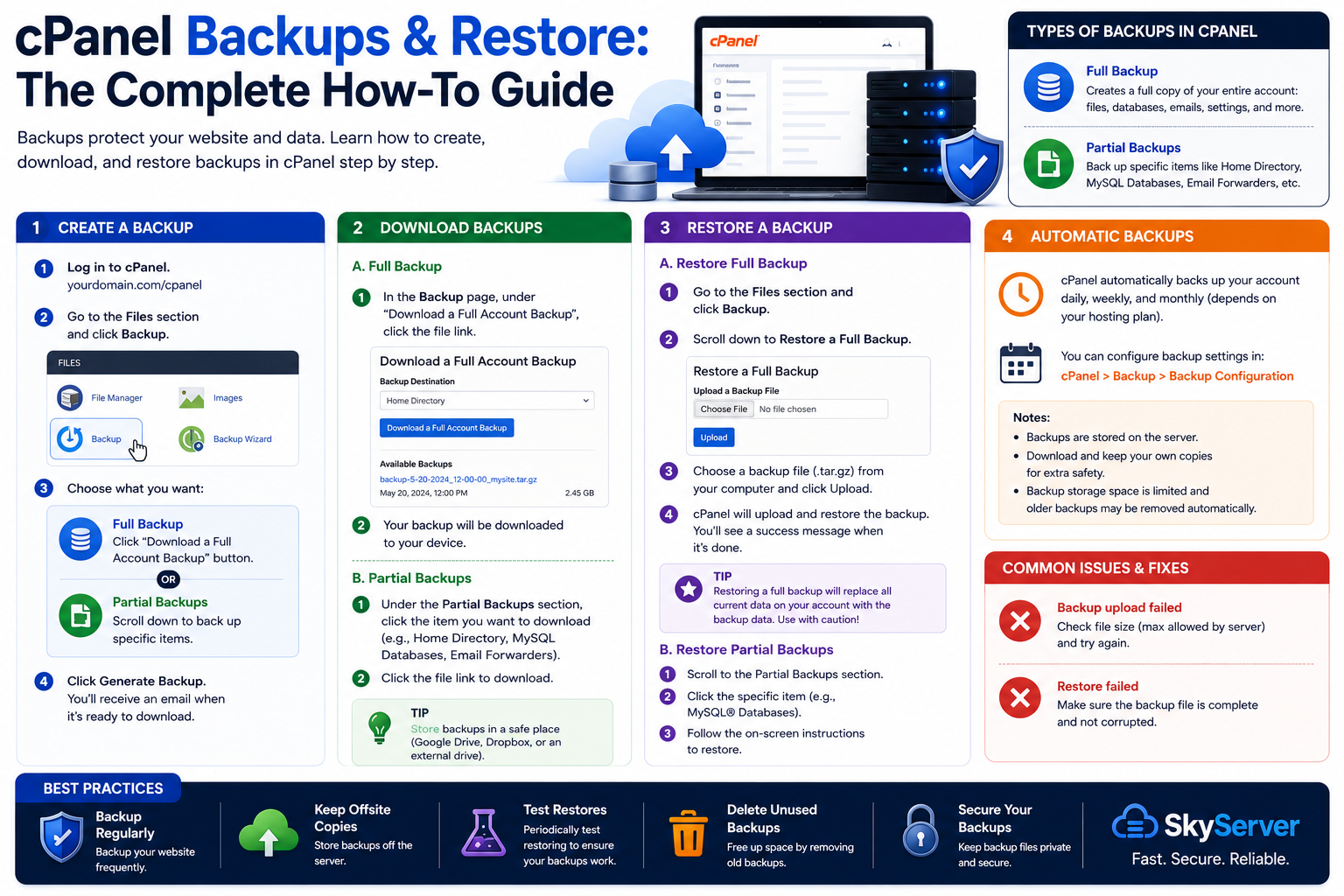
Every hosting engineer has taken the same 2 a.m. call: a client fat-fingered a plugin update, a "cleanup" script deleted the wrong folder, or a database migration went sideways, and now they're asking "can you just restore yesterday's version?" The honest answer depends entirely on whether a backup exists and whether anyone actually knows how to use it. cPanel makes backups easy to create and easy to ignore — until the day you need one. This guide walks through creating, scheduling, and restoring cPanel backups the right way, plus the mistakes that turn a five-minute restore into a multi-hour outage.
Why cPanel Backups Get Neglected
Most accounts ship with backup tools already built in, but nobody opens the Backup Wizard until something breaks. The usual reasons:
- Automatic backups feel like "someone else's job" — the host's, not the site owner's.
- Full backups can be large, and downloading a multi-GB archive over a slow connection feels pointless, so people skip it.
- Restores look scary. One wrong click and people assume they'll make things worse, so they freeze.
None of that changes the fact that a backup you've never tested is a backup you don't actually have. Ransomware, bad updates, and accidental rm -rf commands don't wait for a convenient time.
Types of Backups Available in cPanel
Depending on your plan, you'll see one or both of these in cPanel:
- Native cPanel Backup Wizard — built into every account, found under Files > Backup or Backup Wizard. Creates a full account archive or separate pieces (home directory, databases, email forwarders, email filters).
- JetBackup — a third-party tool many hosts (including SkyServer) run on top of cPanel. It gives you scheduled, incremental snapshots with a browsable file history, so you can grab a single file from three days ago without downloading the whole account.
If you're not sure which one your account has, log into cPanel and check the "Files" section — if you see a "JetBackup" or "Backup Manager" icon alongside the standard "Backup" icon, you have both options.
Creating a Manual Backup (Full Account)
Do this before any risky change — a plugin update, a PHP version bump, a theme switch, anything.
- Log into cPanel and open Backup Wizard (or Backup).
- Click Backup, then choose Full Backup.
- Select a destination. "Home Directory" is fine for a quick safety net, but for anything you actually care about, choose Remote FTP Server or download it locally afterward. A backup stored on the same server as the thing it's backing up doesn't protect you from server-level failures.
- Click Generate Backup. cPanel emails you when it's done — full backups on larger accounts can take anywhere from a couple of minutes to over an hour.
For a lighter option, use Partial Backup from the same screen to grab just the home directory, just one database, or just email configuration — much faster when you only need to protect one piece before an edit.
Scheduling Automatic Backups (JetBackup)
If your account has JetBackup, don't rely on memory — schedule it:
- Open JetBackup from cPanel.
- Go to Backup Settings or Schedules (naming varies slightly by version).
- Set a daily or weekly schedule, and set a retention count — e.g., keep the last 7 daily snapshots.
- Confirm the destination is a remote location, not local disk only.
On SkyServer VPS and cPanel hosting plans, server-level backups already run on a schedule, but that's a safety net for disaster recovery — it's not a substitute for your own account-level backups before you make changes. Server snapshots restore the whole server to a point in time; they won't let you cherry-pick one file from last Tuesday.
Restoring From a Backup
This is where most people either freeze or make it worse by restoring the wrong piece. Slow down and match the restore type to the actual problem.
Full Restore (via WHM, for account-wide disasters)
If the whole site is gone or corrupted, a full restore is the fastest path back:
- This typically requires WHM/root access — if you're on shared hosting, open a support ticket and attach (or point to) the backup file.
- In WHM, go to Backup > Restore a Full Backup/cpmove File.
- Upload the archive or point to its location, then start the restore.
- Full restores overwrite the current account state, so only run one when you're sure the backup you're restoring is the correct, uncorrupted version.
Partial Restore (via cPanel, for one broken piece)
If only the database got wrecked but the files are fine, don't do a full restore — you'll roll back file changes you didn't need to lose.
- Open Backup Wizard > Restore in cPanel.
- Choose the specific piece: Home Directory, MySQL Databases, or Email Forwarders/Filters.
- Upload the matching partial backup file and confirm.
Restoring a Single Database via phpMyAdmin
If you exported a .sql file (or JetBackup let you download just the database backup), you can restore it directly:
- Open phpMyAdmin from cPanel.
- Select the target database on the left.
- Important: if you're restoring over a broken database, drop the existing tables first (or the import may fail on duplicate table errors) — export a fresh copy first if there's any chance you'll need the broken version later.
- Go to the Import tab, choose your
.sqlfile, and click Go.
Common Restore Errors and Fixes
| Error | Likely Cause | Fix |
|---|---|---|
| "Unknown user" or ownership errors after restore | Backup was taken under a different cPanel username | Restore via WHM with the correct account mapping, or manually chown files after restore |
| phpMyAdmin import stalls or times out | Large .sql file exceeds PHP upload/execution limits | Compress the file (.sql.gz), or import via SSH with mysql -u user -p dbname < backup.sql |
| Site restores but shows database connection errors | wp-config.php still points to old database name/user/password | Update the DB credentials in wp-config.php to match what was actually restored |
| Restore "succeeds" but files look outdated | Wrong backup date was selected | Check the backup's timestamp before restoring, not just its filename |
Prevention: A Backup Routine That Actually Works
- Schedule automatic backups — don't depend on remembering to click a button.
- Keep at least one copy off-server (remote FTP, cloud storage, or downloaded locally). If the server itself fails, an on-server backup fails with it.
- Take a manual snapshot before any risky change: plugin/theme updates, PHP version changes, migrations, or bulk database edits.
- Periodically test a restore on a staging copy. A backup nobody has ever restored is a backup with unknown reliability.
- Set a sane retention window (7-30 days is typical) so you're not stuck with only last month's data when you need last Tuesday's.
If you're on a SkyServer plan and you're not sure what's already scheduled on your account, open a support ticket — we can tell you exactly which backup system is active, what's being retained, and help you pull an emergency restore if you're already mid-crisis.
Frequently Asked Questions
How often does SkyServer back up my account?
Server-level backups run on a regular schedule as part of hosting and VPS plans, but the exact frequency and retention can vary by plan tier. For anything business-critical, don't rely solely on this — keep your own scheduled account backups too, since they give you control over timing and retention.
Can I restore just one file instead of the whole account?
Yes, if you're using JetBackup — it lets you browse into a snapshot and pull individual files or folders without touching the rest of the account. The native cPanel Backup Wizard only offers full or partial (whole home directory) restores, not single-file recovery.
Why did my restore overwrite changes I made after the backup was taken?
A restore rolls the account back to exactly the state it was in when that backup was generated. Anything created or changed after that point — new orders, new posts, new files — is gone unless it also exists in a newer backup. This is why testing restore timing carefully before confirming matters.
My backup file won't upload during restore — what now?
Large backup files often exceed the browser upload limit in cPanel. Upload the file via FTP or SSH into your home directory first, then point the Restore tool at that existing file instead of uploading through the browser.
Is a full server snapshot the same as a cPanel account backup?
No. A server snapshot (VPS-level) restores the entire server — every account, every configuration — to one point in time, and is usually managed by the host for disaster recovery. A cPanel account backup is scoped to a single hosting account and is what you'll use for everyday "I broke my site" recovery.